Ministry Review
Ministry Review lets an organization ask its Kingdom Workers to submit periodic financial documents — an annual budget and regular reports — directly through Ergatas. Once an organization turns the feature on, Ergatas reminds workers automatically when a document is due and gives the organization a single table showing who has submitted and who is still outstanding.
This page covers both sides of the feature: how an organization administrator sets it up and reviews submissions, and how a worker uploads their documents.
For Organization Administrators
Ministry Review is managed from the Manage Organization page in your Dashboard. This page is available to organization administrators; if you don't have it yet, see Managing Your Organization for how to request access.
Turning on Ministry Review
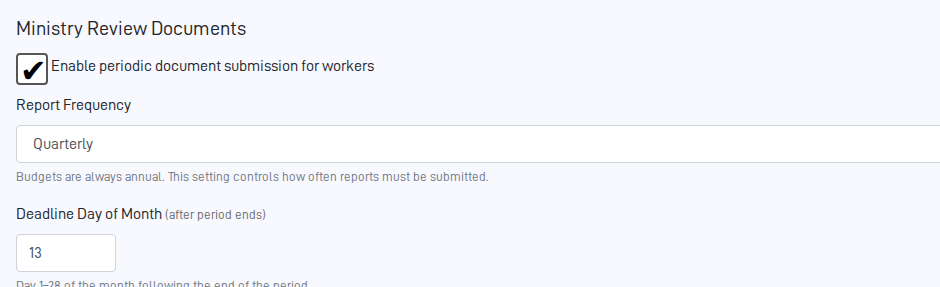
On the Manage Organization page, click the edit icon to open the edit form and find the Ministry Review Documents section. Check "Enable periodic document submission for workers" to reveal the settings:
- Report Frequency — choose Quarterly or Annual. This controls how often reports are due. (Budgets are always annual, regardless of this setting.)
- Deadline Day of Month — a day from 1 to 28 in the month after a period ends, by which the document for that period is due. For example, with quarterly reports and a deadline day of 15, the report for the quarter ending March 31 is due by April 15.
Click Save to apply your changes. The Ministry Review section will only appear for your workers once the feature is enabled.
Reviewing what workers have submitted
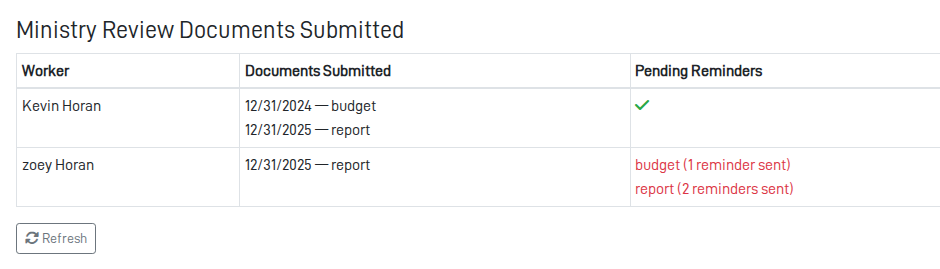
When the feature is enabled, the Manage Organization page shows a Ministry Review Documents Submitted table listing every worker in your organization:
- Worker — the worker's name.
- Documents Submitted — each document the worker has uploaded, labeled with its submission period and type (for example, Q1 2025 — Report). Shows None if the worker hasn't submitted anything yet.
- Pending Reminders — any documents that are still outstanding, along with how many reminders have been sent. A green check mark () means the worker is up to date.
Use the Refresh button to reload the latest status at any time.
Automatic reminders
You don't have to chase workers manually. When a document is due and hasn't been submitted, Ergatas emails the worker a reminder with a direct link to the upload form. Up to three reminders are sent, roughly two weeks apart, until the document is submitted. The Pending Reminders column shows how many have gone out for each outstanding document.
For Workers
If your organization uses Ministry Review, you submit your budget and reports from your own profile.
Finding the Ministry Review section
Open your profile for editing and click the Files tab. If your organization has enabled the feature, you'll see a Ministry Review Documents section there. (If you don't see it, your organization isn't using Ministry Review, and there's nothing for you to submit.) Reminder emails link you straight to this tab.
Uploading a document
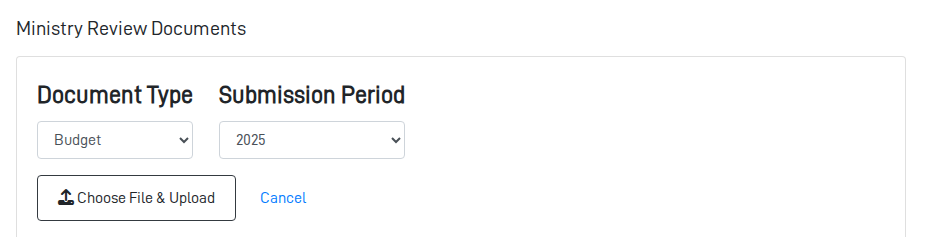
- Click Add Document.
- Choose the Document Type — Budget or Report.
- Choose the Submission Period the document is for. The list shows the most recent periods; budgets are listed by year, and reports by quarter or year depending on your organization's schedule.
- Click Choose File & Upload and pick the file from your computer (up to 10 MB).
Once uploaded, the document appears in the section as a labeled thumbnail showing its period and type, for example Q1 2025 — Report. You can delete a document you've uploaded if you need to.
You can keep only one document per type per period. To replace a document you've already submitted — for instance, if you uploaded the wrong file — delete the existing one first, then upload the new version.